Blog · Guides
How to Develop and Publish iOS Apps Without Owning a Mac in 2026
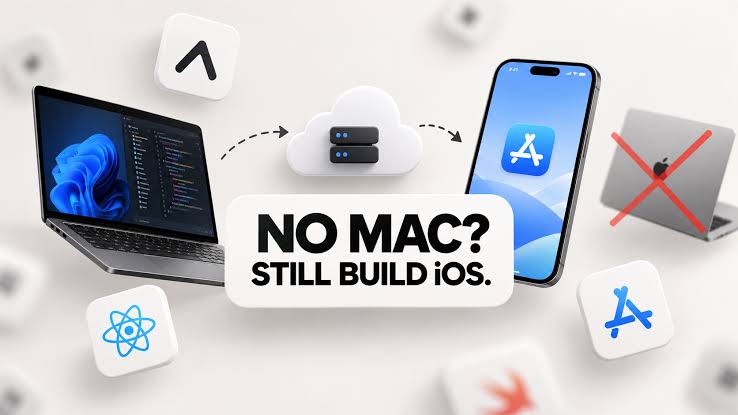
Developing an iOS app has traditionally required a Mac, Apple's Xcode development environment, and access to Apple's build and signing tools. For developers who use Windows or Linux, buying a Mac just to build an iPhone app can be an expensive investment.
The good news is that you no longer need to own a Mac to develop and publish an iOS application. With cross-platform frameworks, cloud build services, and remote Mac rentals, you can build, test, and distribute iOS apps using a computer you already own.
In this guide, we'll explore how to develop iOS apps without a Mac, compare the available options, examine cloud Mac rental services, and explain the steps involved in publishing an app to Apple's App Store.
Can You Develop an iOS App Without a Mac?
Yes. You can write most of your application code on Windows or Linux and use cloud services to handle the parts that require Apple's development tools. However, there is an important distinction between writing an app and building a release-ready iOS application.
You can develop much of your app without macOS, but Apple's native build, signing, simulator, and distribution workflows rely on Apple's tools. Cloud build services and remote Mac environments make those tools accessible without requiring you to purchase physical hardware.
There are three main approaches: • Use a cross-platform framework and a cloud build service. • Rent a Mac hosted remotely and access it over the internet. • Use a combination of local development and cloud-based Apple tooling.
The right approach depends on your budget, programming experience, and whether you want to build a simple application or a complex native iOS product.
Method 1: Develop iOS Apps on Windows Using React Native and Expo
For many beginners and independent developers, React Native with Expo is one of the easiest ways to get started.
React Native allows you to build mobile applications using JavaScript or TypeScript. Expo adds development tools and cloud services that simplify the process of building and testing applications for iOS and Android.
What You Need
You can begin with: • A Windows or Linux computer. • Visual Studio Code. • Node.js. • React Native and Expo. • An iPhone or Android phone for testing, where appropriate. Most of the application code can be written and edited locally.How the Workflow Works
Step 1: Create your project
Install Node.js and create an Expo project using the official documentation.
bash npx create-expo-app@latest my-app cd my-app npx expo startFollow the instructions displayed in your terminal to preview the application.
Step 2: Write your application code
Use Visual Studio Code to build screens, navigation, forms, API integrations, authentication, and other features.
You can also integrate AI services, databases, and backend APIs without needing a Mac for everyday coding.
Step 3: Preview the application
Expo Go allows you to preview compatible projects on a physical phone. Some native modules and advanced capabilities require a development build instead.
Step 4: Build the iOS application in the cloud
Expo Application Services (EAS) can build iOS applications using hosted Apple development infrastructure.
After configuring the project and Apple signing credentials, you can initiate a build from your development computer.
Official guide: https://docs.expo.dev/build/setup/
Step 5: Distribute the application
You can use supported distribution methods, including TestFlight and App Store submission, after completing the required Apple developer account and signing setup.
Advantages of React Native and Expo • No need to buy a Mac. • One codebase can support iOS and Android. • Many common development tasks can be performed on Windows. • Cloud builds reduce the need to manage Xcode yourself. • Suitable for many business apps, social apps, AI applications, and productivity tools.
Limitations
Expo does not remove every Apple-specific requirement. Projects that need unsupported native modules, advanced native debugging, or direct interaction with Xcode may still benefit from access to a cloud Mac.
Method 2: Use Flutter to Build iOS Apps Without Owning a Mac
Flutter is another popular option for developers who want to build applications for multiple platforms from one codebase.
It uses the Dart programming language and provides a large collection of interface components for creating consistent mobile experiences.
You can write Flutter code on Windows or Linux and test many aspects of your application without macOS.
However, producing a standard iOS release still requires Apple's development tools. You can use a cloud build provider or a remote Mac for this stage.
When Should You Choose Flutter?
Flutter may be a good choice if: • You want highly customized user interfaces. • You plan to release both iOS and Android versions. • You prefer Dart and Flutter's widget-based development model. • You want substantial control over the visual design of your application.
React Native and Flutter are both viable choices. The better option depends on your existing skills, project requirements, and the libraries your application needs.
Official website: https://flutter.dev/
Method 3: Rent a Cloud Mac for iOS Development
If you specifically want to develop native iOS applications using Swift, SwiftUI, and Xcode, a remote Mac can be a practical alternative to purchasing a physical machine.
A cloud Mac is a real Mac computer hosted by a service provider. You connect to it over the internet using remote desktop software, SSH, or other supported access methods.
Depending on the provider and configuration, you may be able to install software, manage your project, run Xcode, and build your application remotely.
Why Rent a Mac Instead of Buying One?
A Mac can be a significant expense if you only need Apple's development environment occasionally.
Renting can help you:
• Avoid the upfront cost of purchasing a Mac.
• Access Xcode and native Apple development tools.
• Build and sign iOS applications.
• Test native dependencies and troubleshoot build problems.
• Access a more powerful machine when required.
The main trade-offs are recurring rental fees, internet dependency, remote desktop latency, and the need to protect your development credentials.
Hatmac: A Cloud Mac Rental Option
Hatmac is one provider to investigate if you want a dedicated Mac accessible remotely.
Website: https://www.hatmac.com/
Before choosing Hatmac, verify the current hardware configurations, monthly rental prices, minimum commitment, physical server location, and remote access options directly with the provider.
For example, if you are comparing a Mac mini with a Mac Studio, pay attention to unified memory, storage, CPU and GPU capabilities, and the workload you intend to run.
For ordinary iOS development, a high-end Mac Studio is not automatically necessary. A suitable Mac mini may be enough for many projects.
Before purchasing a plan, confirm that it includes the level of administrative access you need and supports your intended Xcode version.
Other Cloud Mac Providers
You can also compare providers such as:
• MacStadium
• MacinCloud
Availability, hardware options, billing periods, and supported access methods vary. Compare the current terms rather than assuming every provider offers the same configuration or a one-month rental.
Method 4: Use Cloud Build Services Instead of Renting a Mac
A remote Mac and a cloud build service solve different problems.
A remote Mac gives you interactive access to a computer running macOS. You can work in Xcode, inspect build errors, and perform other native development tasks.
A cloud build service accepts your project and runs the build on hosted infrastructure. You typically interact with it through a command-line interface or web dashboard rather than a full remote desktop.
For developers using React Native and Expo, EAS Build can be particularly convenient.
When Is Cloud Building Enough?
A cloud build service may be all you need if:
• You primarily develop in React Native or Expo.
• Your application uses supported libraries and standard build configurations.
• You do not need to work directly inside Xcode every day.
• You want to compile and distribute releases without managing a Mac.
A cloud Mac is more useful when you need direct access to Xcode, native debugging, or development workflows that a build service cannot accommodate.
For some projects, using both approaches provides the best balance.